Hello everyone, in this post I will cover a tips on how to create a
barcode image without any software or machine. As a part of system
checkout, barcode plays important roles in information system. The easy
example of barcode implementation usually we can see barcode label on a
product in supermarket. Within the barcode attached in a product lies
some information about product id/name. The cashier will scan its
barcode with a machine. When the product sold, computer will
automatically update the database.
Actually you can also create barcode label for your own stuff. The process is very easy, there is no need to use a machine or a software to create a barcode. Here I will show you the method. We will use a site that provides barcode generator.
Free Online-Based Barcode Creator
Morovia
As far as I know, one of the best site that allow you to create barcode is Morovia. Not only for the traditional type of barcode but it also covered a tool to generate QR Code
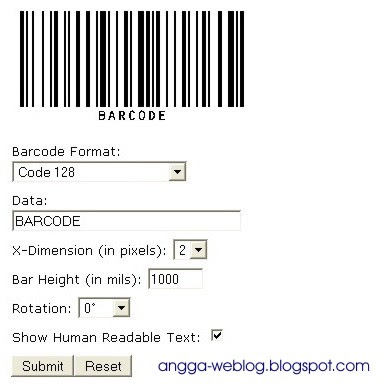
Morovia’s interface is very simple, choose whether you want to create barcode or QR-Code. Set the format, data, dimension, bar height, and rotation then click submit. The tool will process your need, and finally it will give you a barcode image.

For QR-code making, input data to encode; set the module width, version and error correction level. Then click submit!
Ok friends, that’s the quick post for today. Tomorrow, I will make a post on how to read a barcode and QR code, so stay tuned! Do you have your favorite tool to create a barcode? Then please share it on comment.
Actually you can also create barcode label for your own stuff. The process is very easy, there is no need to use a machine or a software to create a barcode. Here I will show you the method. We will use a site that provides barcode generator.
Free Online-Based Barcode Creator
Morovia
As far as I know, one of the best site that allow you to create barcode is Morovia. Not only for the traditional type of barcode but it also covered a tool to generate QR Code

Morovia’s interface is very simple, choose whether you want to create barcode or QR-Code. Set the format, data, dimension, bar height, and rotation then click submit. The tool will process your need, and finally it will give you a barcode image.

For QR-code making, input data to encode; set the module width, version and error correction level. Then click submit!
Ok friends, that’s the quick post for today. Tomorrow, I will make a post on how to read a barcode and QR code, so stay tuned! Do you have your favorite tool to create a barcode? Then please share it on comment.


